

By using this site, you agree to the Privacy Policy and Terms of Use.
Accept
Okay News
  • News
  • Entertainment
  • Business & Economy
  • Sport
  • Tech
Font ResizerAa
Okay NewsOkay News
Search
  • News
  • Entertainment
  • Business & Economy
  • Sport
  • Tech
Follow US
Brands

Step by Step Guide: How to Update Your AirPods Pro to the Newest Firmware

Okay News
By
Okay News
ByOkay News
Okay.ng launched under OKN MEDIA PUBLISHING (RC Number: 2993580) in the year 2012 is an independent digital news platform with thousands of page views and unique...
Follow:
Published: 2023/10/19
2 Min Read
Share
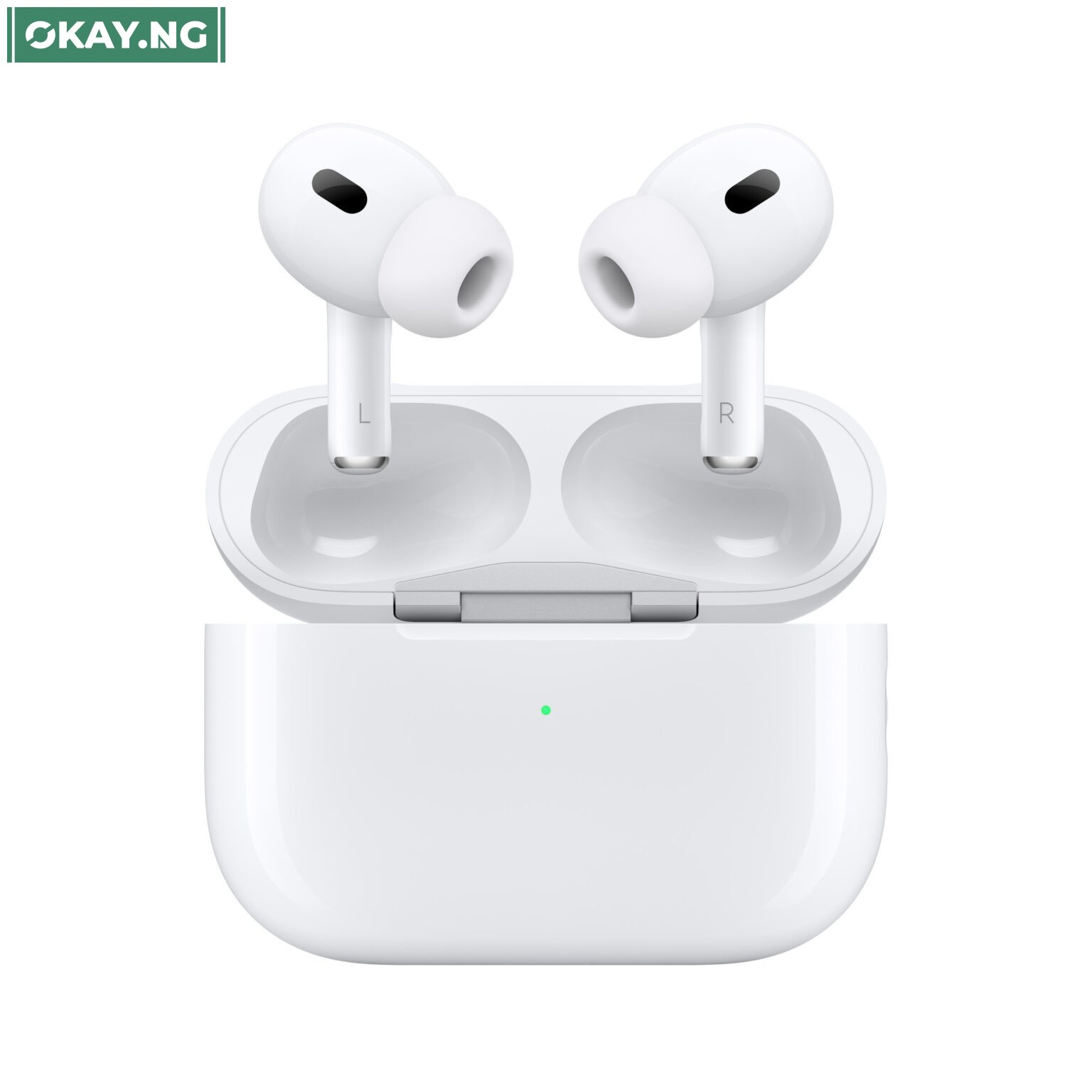
AirPods Pro 2
SHARE

Apple regularly releases firmware updates for its AirPods Pro. These updates can improve performance, fix bugs, and add new features.

Contents
  • Steps to Update Your AirPods Pro
  • How to Check the Firmware Version of Your AirPods Pro
  • Troubleshooting
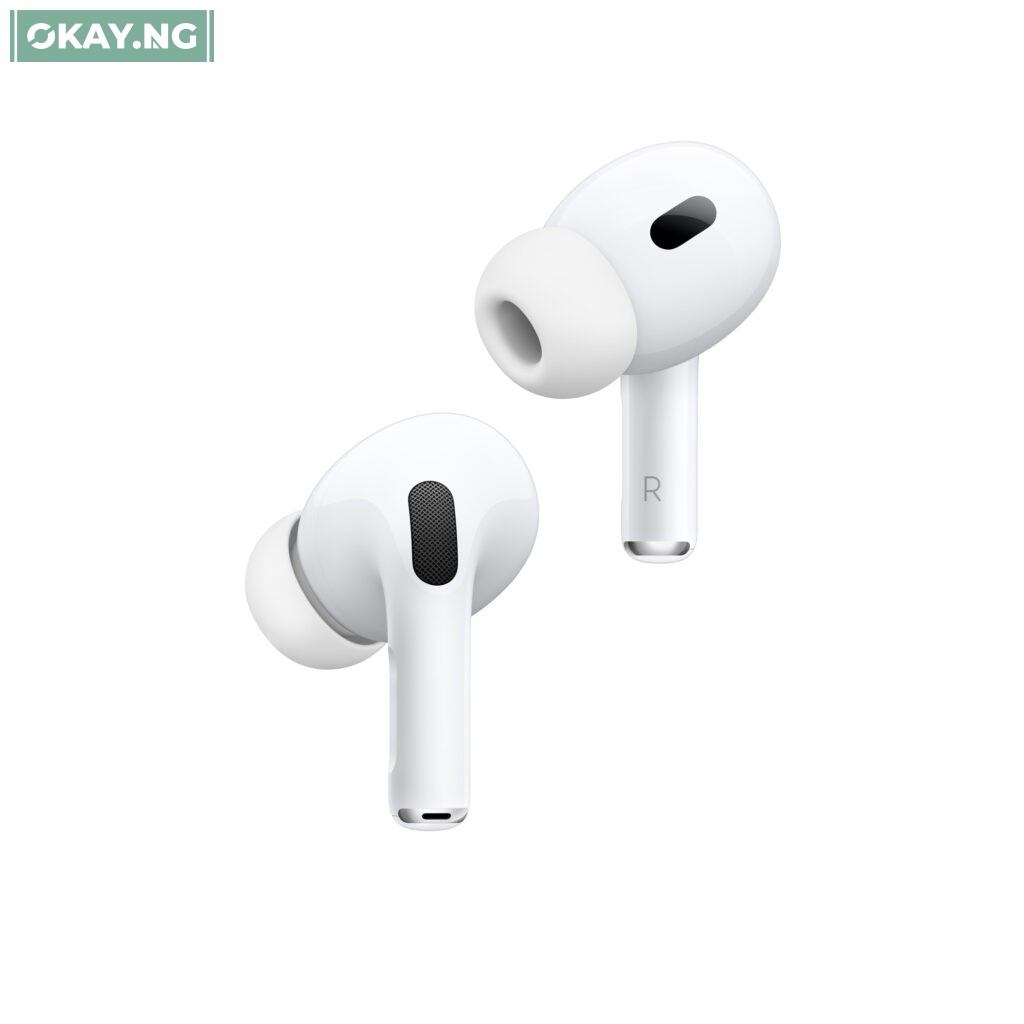
AirPods Pro 2
AirPods Pro 2

To ensure that you are getting the most out of your AirPods Pro, it is important to keep them up to date with the latest firmware.

Steps to Update Your AirPods Pro

To update your AirPods Pro to the newest firmware, follow these steps:

  1. Make sure that your AirPods Pro are connected to your iPhone or iPad.
  2. Place your AirPods Pro in the charging case and close the lid.
  3. Connect the charging case to a power source.
  4. Leave your AirPods Pro connected to power and within range of your iPhone or iPad for at least 30 minutes.
  5. Your AirPods Pro will automatically update to the newest firmware if it is available.

How to Check the Firmware Version of Your AirPods Pro

To check the firmware version of your AirPods Pro, follow these steps:

  1. Connect your AirPods Pro to your iPhone or iPad.
  2. Open the Settings app.
  3. Tap Bluetooth.
  4. Find your AirPods Pro in the list of devices and tap the info button (the “i” in a circle).
  5. The firmware version of your AirPods Pro is listed under the About section.

Troubleshooting

If your AirPods Pro are not updating to the newest firmware, you can try the following:

  • Make sure that your AirPods Pro are connected to a power source.
  • Make sure that your iPhone or iPad is connected to the internet.
  • Try restarting your iPhone or iPad.
  • Try resetting your AirPods Pro.

To reset your AirPods Pro, follow these steps:

  1. Place your AirPods Pro in the charging case and close the lid.
  2. Wait 30 seconds.
  3. Open the lid of the charging case and press and hold the setup button on the back of the case for 15 seconds, or until the status light flashes amber and then white.
  4. Release the setup button.
  5. Your AirPods Pro have now been reset.

TAGGED:AirPods Pro
Share This Article
Facebook Pinterest Whatsapp Whatsapp Email Print
ByOkay News
Follow:
Okay.ng launched under OKN MEDIA PUBLISHING (RC Number: 2993580) in the year 2012 is an independent digital news platform with thousands of page views and unique visitors every month
Previous Article New NCC EVC, Maida Pledges Alignment with Tinubu’s Digital Transformation Agenda
Next Article WhatsApp Introduces Simultaneous Login for Two Accounts on Single Device

Stay Connected

FacebookLike
XFollow
InstagramFollow
TiktokFollow
WhatsAppFollow
- Advertisement -

You Might Also Like

Brands

How FairMoney Is Powering Financial Inclusion for Nigerian Hustlers

By
Okay News
4 Min Read
Brands

Nigeria’s Largest Employee Reward: BUA Group Gives ₦30bn to 510 Staff

By
Muhammad A. Aliyu
3 Min Read
Brands

DStv Subscribers May Lose 12 WBD Channels From January 1 Over Contract Dispute

By
Muhammad A. Aliyu
3 Min Read
Okay NewsOkay News
Follow US
2025 © Okay International Limited - All rights reserved
  • About Us
  • Advertising
  • Contact
  • Careers
  • Team
Welcome Back!

Sign in to your account

Username or Email Address
Password

Lost your password?

Continue with Facebook
Not a member? Sign Up